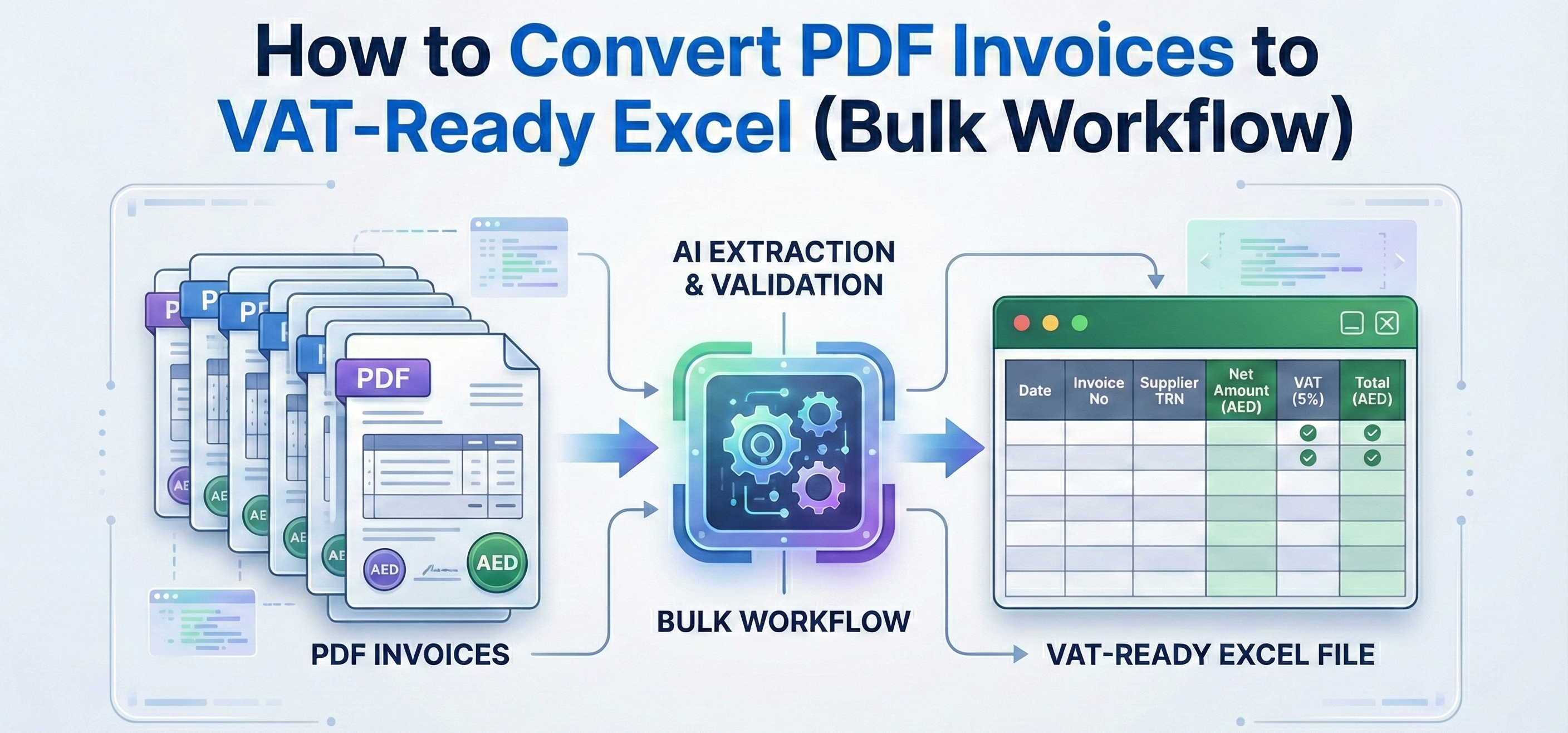
How to Convert PDF Invoices to VAT-Ready Excel (Bulk Workflow)
If you process invoices manually, the slowest part is usually copying fields from PDFs into Excel. The risk is also high: one wrong TRN, date, or VAT amount can create problems later.
This guide is general guidance (not legal advice) for building a clean invoice-to-Excel workflow suitable for UAE invoice record keeping. The references at the end point to official UAE sources on tax invoices and VAT record requirements.
What “VAT-Ready Excel” Means (Simple Definition)
A VAT-ready invoice spreadsheet usually means:
- 1 row per invoice
- Consistent columns (same order, same naming)
- Totals that reconcile (taxable + VAT = total)
- Clear supporting document trail (the PDF invoice for each row)
Step 1: Decide the Exact Fields You Will Extract (Don’t Skip This)
For UAE invoice tracking, most teams need at minimum:
- Supplier name
- Supplier TRN
- Invoice number
- Invoice issue date (and supply date if different)
- Taxable amount (excl. VAT)
- VAT amount
- Total amount (incl. VAT)
- Currency
- Notes / exceptions
Tip: If your columns change every month, your VAT file becomes hard to audit. Lock the columns early.
Step 2: Standardize Folders and Naming (10 Minutes That Saves Hours)
Use a simple folder structure like: 2026 / 02-Feb / Supplier Name / invoices.pdf
And naming like: SupplierName_YYYY-MM_Batch01.pdf
This makes it easy to locate the supporting invoice during reconciliation or audit.
Step 3: Extract Data (Manual vs Automated)
Manual Extraction (Fine for Small Volume)
- Open PDF invoice
- Copy fields into Excel
- Double-check totals and VAT
- Repeat
Automated Extraction (Best for Bulk)
- Upload invoices to an extraction tool
- Extract fields into a structured table
- Review exceptions (low confidence, missing TRN, unclear totals)
- Export to Excel (VAT-ready columns)
Reality check: Automation isn’t “set and forget.” The winning workflow is automation + a small exception review.
Step 4: Validate Your Excel Output (Fast Checks)
Before you close the month or submit VAT, run quick checks:
- Random sample check: Verify 5–10 invoices match the PDF exactly
- Math check: taxable + VAT = total
- TRN check: supplier TRN is present and readable
- Duplicate check: invoice numbers aren't repeated unexpectedly
- Date check: issue date is present; supply date handled where needed
- Currency check: foreign currency invoices are handled consistently in AED
These checks catch most problems in minutes.
Step 5: Keep an “Exceptions” Column (So Accounting Only Fixes Problems)
Add a column called Exceptions (or Notes) and write simple tags like:
- Missing TRN
- Unclear VAT amount
- Duplicate invoice number
- Totals mismatch
- Foreign currency – AED conversion needed
This helps the accountant focus only on the few invoices that need attention.
Step 6: Store PDFs With a Clean Link Back to Each Excel Row
Best practice:
- Keep the original PDFs in a folder by month/supplier
- Store the PDF filename (or link) in your Excel output
- That way every invoice row has a direct supporting document
Sources (Official UAE References)
Frequently Asked Questions
Is PDF-to-Excel conversion accurate?
What causes wrong invoice numbers or dates?
Can I bulk process 100+ invoices?
What is the best Excel format for VAT review and reporting?
Should I store the original PDFs?
Related Articles
UAE Tax Invoice Requirements (2026): Practical Checklist + Examples
Practical checklist for UAE tax invoices — full vs simplified requirements, common mistakes, exchange rate rules, and automation tips.
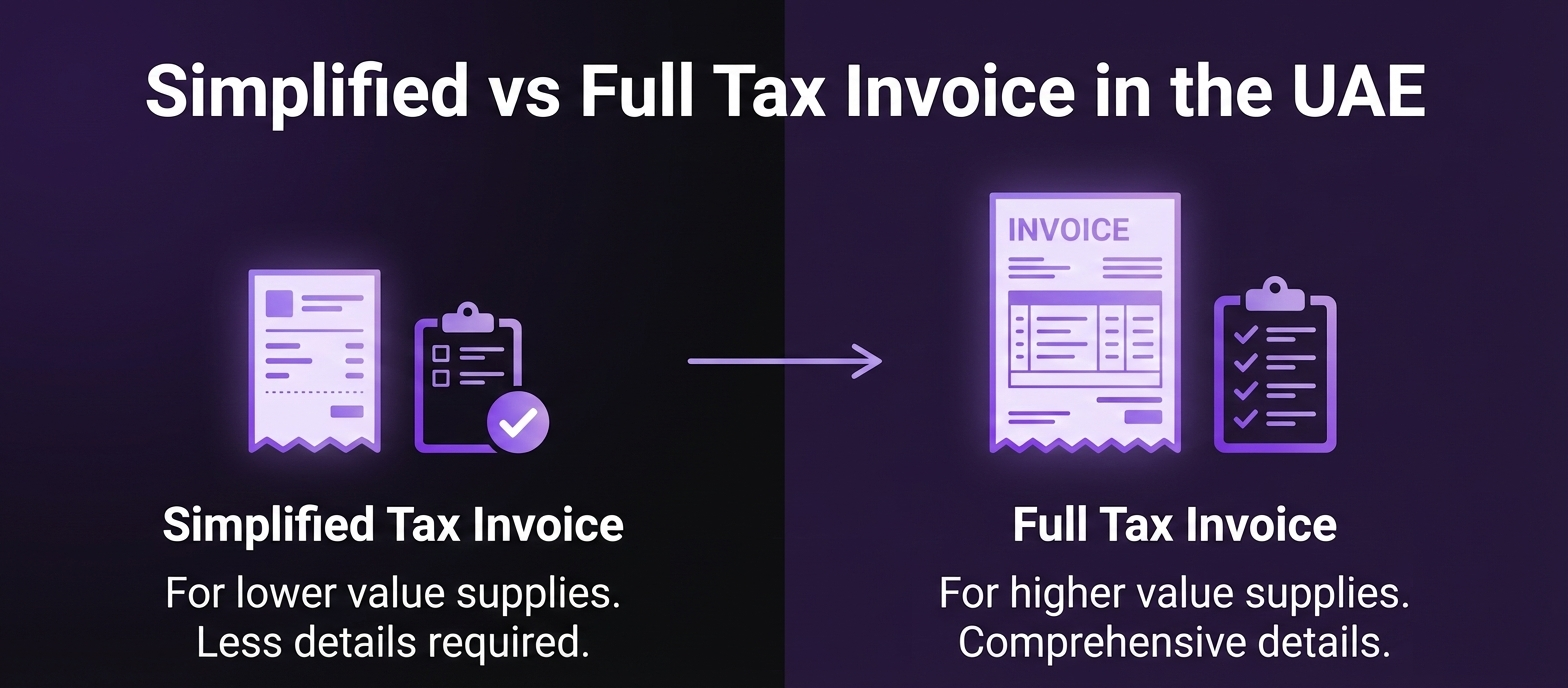
Simplified vs Full Tax Invoice in the UAE: When Can You Use Each?
Know when to use a simplified vs full tax invoice in the UAE, what fields each requires, and how to avoid common VAT rework.